QR Codes in the Real World: How to Scan Safely and Avoid Fake Menus, Payments, and Parking Traps
QR codes are everywhere—from restaurant tables to parking meters. Learn quick habits to scan safely, spot fakes, and protect your money and accounts.
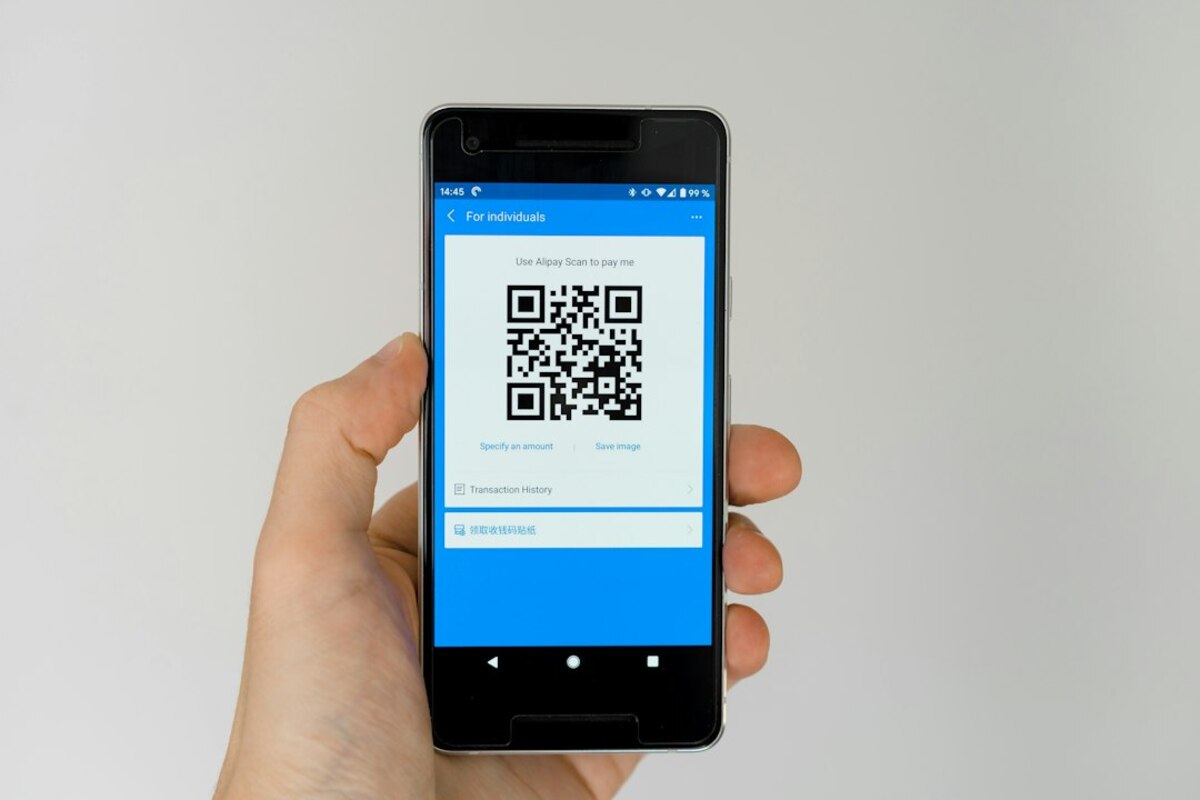
- Treat QR codes like links: preview the destination and look for small signs of tampering before you tap.
- Know the most common scams (fake menus, fake parking payments, “verify your account” codes) and how they work.
- Use simple defenses: phone settings, browser checks, and safer payment choices when a QR code asks for money or login.
Why QR codes suddenly feel like “the new normal”
QR codes didn’t become popular because they’re trendy—they became popular because they remove friction. Instead of typing a long web address, you point your camera and you’re in. Restaurants don’t need to print menus, event organizers don’t need to hand out flyers, and you don’t need to install a dedicated app for every small task.
That convenience is exactly why scammers like them. A QR code is basically a shortcut to a link or action, and most of us don’t “read” it the way we read a website address. You can’t glance at a QR code and notice it’s suspicious. You have to scan it to see where it goes.
Think of QR codes like doorbells in a big apartment building. The doorbell itself doesn’t look dangerous. The risk is what happens after you press it—who answers, what they ask you to do, and whether the situation makes sense.
Here are a few everyday places you’ll see QR codes, and what’s usually happening behind the scenes:
- Restaurant tables: QR code opens a menu webpage or ordering page.
- Parking signs/meters: QR code opens a payment page or app download page.
- Packages and product labels: QR code opens instructions, warranty registration, or marketing pages.
- Events and tickets: QR code may verify entry, or link to event details.
- Emails and posters: QR code often links to a signup form, discount, or “verify your account” page.
The “scan safely” goal isn’t to be paranoid. It’s to build a few fast habits so you get the convenience without accidentally handing your card number or login to the wrong place.

The most common QR scams (and what they look like in real life)
QR scams work because they blend into normal life. They rarely look like a dramatic hacker scene. They look like a sticker on a sign, a code on a flyer, or a code emailed by “support.” Below are the patterns that show up most often.
1) The fake menu sticker
Scenario: You sit down at a café. There’s a QR code on the table. You scan it and a page opens that looks like a menu… but it asks you to “confirm your phone number,” “sign in,” or install something.
How it works: Someone places a sticker with their own QR code over the real one. The destination might be a lookalike site that collects personal info, or a page stuffed with aggressive ads, or a “download our ordering app” prompt that’s actually a risky install.
What feels off: A menu should show… a menu. If it asks you for credentials, payment details, or permissions before you can even view items, pause.
2) The fake parking payment code
Scenario: You’re in a rush. The parking sign has a QR code that says “Pay here.” You scan, enter your plate, and pay. Later you discover you paid a random site, not the city/vendor.
How it works: A scammer adds a sticker QR code to a legitimate sign. The page may look convincing (logo, city name, similar colors). You’re stressed and time-pressured—perfect conditions for missing small details.
What feels off: The web address looks strange (extra words, misspellings, odd domain endings), or the page asks for unusual info (full address, account login, or a “processing fee” that seems arbitrary).
3) “Verify your account” QR codes in emails or texts
Scenario: You get an email: “Unusual login attempt. Scan this QR code to secure your account.” It feels urgent, and scanning is easier than clicking.
How it works: The QR code sends you to a phishing page that looks like a real login. Once you type your password, they have it. Some pages also ask for a one-time code (2FA) to complete the takeover immediately.
What feels off: High urgency, vague details, and a QR code where you’d normally expect a normal login link or instructions to go to the app directly.
4) “Free Wi‑Fi” QR codes
Scenario: A sign says “Free Wi‑Fi—scan to connect.” You scan and it asks you to install a profile, accept a certificate, or enter a login that resembles your email provider.
How it works: Sometimes it’s just a captive portal. Sometimes it’s a phishing flow (collecting credentials) or it tries to get you to install something you don’t need. Wi‑Fi prompts can blur the line between normal and sketchy, so use extra caution.
What feels off: Requests to install a configuration profile, “security certificate,” or app just to use basic Wi‑Fi.
5) Payment redirection tricks
Scenario: A QR code says “Tip your server” or “Pay invoice.” You scan and it opens a payment page. But the recipient name is unfamiliar—or there isn’t one.
How it works: The code routes you to a payment link where the payee is controlled by the scammer. Some scams rely on the fact that many people don’t confirm the recipient details when paying quickly.
What feels off: A payment page that doesn’t clearly show who you’re paying, or shows a personal account when you expected a business.
| Where you scan | Normal outcome | Common scam twist | Fast safety check |
|---|---|---|---|
| Restaurant table | Menu page or ordering page | Sticker overlays to a fake site | Look for sticker edges; preview the domain before opening |
| Parking sign/meter | Official payment page/app | Lookalike payment page collects card details | Verify domain; consider using the official parking app directly |
| Email/text message | Account notice | Phishing login page asks for password + 2FA | Don’t scan; open the official app/site yourself |
| Flyer/poster | Event info, signup form | Survey/prize “bait” leading to data collection | Check organizer; avoid entering sensitive info from a cold scan |
A simple “scan safely” checklist you can actually remember
Most QR safety advice fails because it’s too long or too technical. Here’s a practical routine that fits into real life, whether you’re paying for parking or pulling up a menu.
Step 1: Treat it like a link, not a magical button
A QR code is usually just a URL in disguise. If you wouldn’t click a random link taped to a lamppost, don’t automatically trust a random QR code either.
Step 2: Do a 3-second physical check (especially on signs and tables)
- Look for sticker-on-sticker: edges, bubbles, misalignment, or a code that looks newly placed.
- Check for multiple codes: two codes next to each other can be a sign that someone “added” one.
- Ask staff when it’s a business setting: “Is this your menu QR?” is normal now.
Step 3: Preview the destination before you proceed
Most phone camera apps show a preview link when you scan. Use that moment.
- Read the domain slowly: not the whole address, just the main domain (example:
cityparking.com). - Watch for lookalikes: extra words (
city-parking-payments.com), odd spelling, or unusual domain endings. - Prefer HTTPS: a lock icon isn’t a guarantee, but
http://for payments/login is a red flag.
Step 4: Be suspicious of QR codes that ask for logins, downloads, or permissions
Many legitimate services require login—but a QR code is not proof you’re on the legitimate service.
- If it asks you to sign in, consider opening the app or typing the known official website yourself.
- If it asks you to install an app, go to the official App Store/Google Play and search by name instead of installing via a QR prompt.
- If it asks for device permissions that don’t match the task (contacts, SMS access, device admin), back out.
Step 5: When money is involved, add one extra verification
Paying through a QR code can be safe, but don’t pay on autopilot.
- Confirm the payee/merchant name if it’s shown.
- Compare to the sign or invoice: same company name? Same city/lot operator?
- Use a safer payment method when possible (for example, a digital wallet that doesn’t expose your card number to every site).
Step 6: Know what to do if you think you scanned something sketchy
- Don’t enter information (passwords, card numbers, one-time codes). Just close the page.
- If you did enter a password: change it immediately on the real site/app (not via the QR page) and enable two-factor authentication if you haven’t.
- If you paid: contact your bank/payment provider quickly and report the transaction as suspicious.
- If you installed something: uninstall it, review app permissions, and run your device’s built-in security scan (or reputable mobile security tool if you already use one).
In most everyday cases, the risk is what you do after scanning—opening a link, entering credentials, paying, or installing something. Modern phones generally don’t execute “magic hacks” just from a scan, but it’s smart to keep your phone updated and avoid installing unknown apps.
In most everyday cases, the risk is what you do after scanning—opening a link, entering credentials, paying, or installing something. Modern phones generally don’t execute “magic hacks” just from a scan, but it’s smart to keep your phone updated and avoid installing unknown apps.
Usually no. Your phone’s built-in camera scanner is enough and tends to be safer than random scanner apps that add ads or request extra permissions. If you do use an app, choose a well-known one and keep permissions minimal.
Usually no. Your phone’s built-in camera scanner is enough and tends to be safer than random scanner apps that add ads or request extra permissions. If you do use an app, choose a well-known one and keep permissions minimal.
If your city/lot operator has an official app, opening that app directly (or downloading it by searching in the app store) reduces the risk of QR sticker tampering. If you do scan, verify the domain and look for clear merchant details before paying.
If your city/lot operator has an official app, opening that app directly (or downloading it by searching in the app store) reduces the risk of QR sticker tampering. If you do scan, verify the domain and look for clear merchant details before paying.
One last helpful mindset shift: QR codes are not “trusted” just because they’re printed neatly or placed in a familiar spot. They’re shortcuts. Use them—but build in one pause where you verify the destination, especially when the scan leads to a login, a download, or a payment.