QR Codes in Real Life: How to Scan Safely Without Getting Tricked
QR codes are everywhere—from menus to parking meters. Learn what they do, why scams happen, and how to scan safely in daily life.
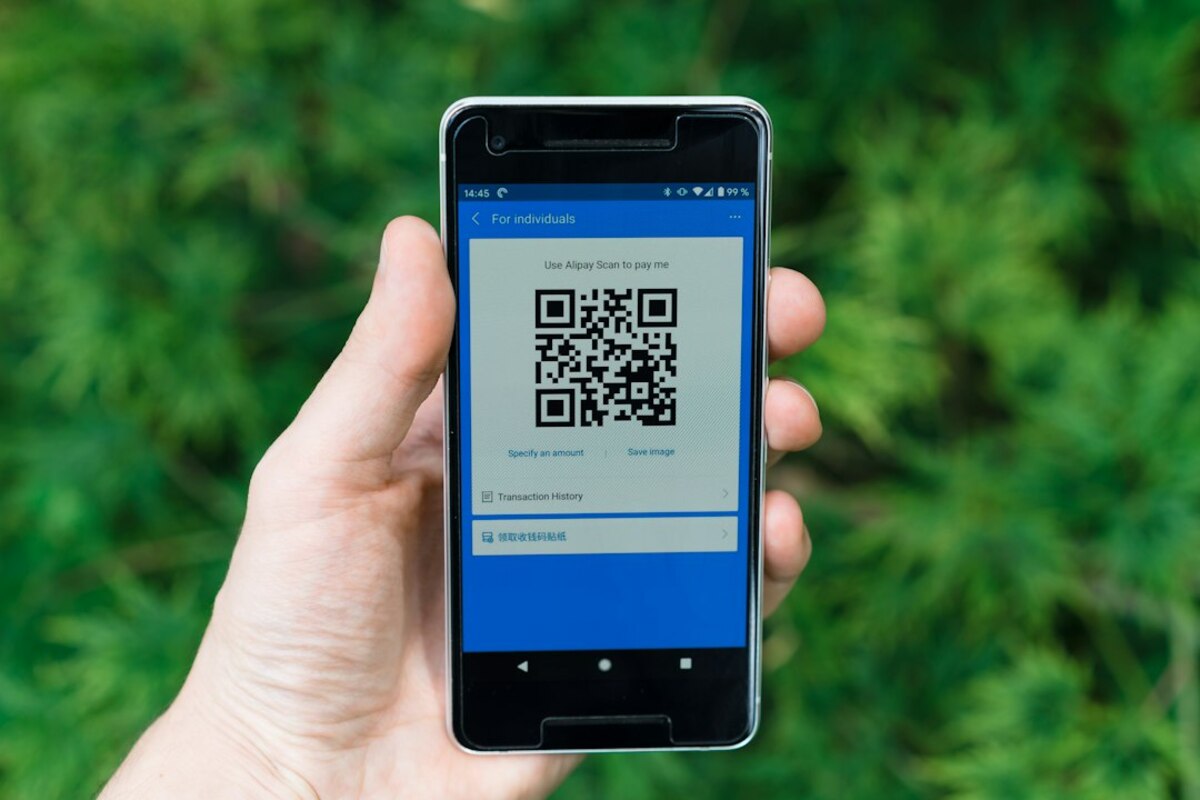
- A QR code is basically a shortcut to a link or action—treat it like clicking a URL
- Most QR scams rely on swapping stickers or sending you to look‑alike sites
- A few quick habits (preview the link, verify the source, avoid urgent payments) reduce risk a lot
Why QR codes suddenly feel like they’re everywhere
Ten years ago, QR codes were the thing you saw on a poster, ignored, and forgot. Today they’re on restaurant tables, parking signs, event badges, delivery boxes, utility bills, museum placards, TV ads, and even your friend’s wedding invitation. The reason is simple: a QR code turns “type this long web address” into “point your camera and go.”
Think of a QR code like a doorway. The black-and-white squares aren’t the destination—they’re just the sign that tells your phone where the door goes. That destination is usually a web link, but it can also be a Wi‑Fi login, a payment request, a contact card, or an app download.
Most people’s first real QR habit came from one of these everyday scenes:
- Restaurant menu: scan, read, order.
- Parking meter: scan, pay, extend time.
- Package pickup: scan, open a locker.
That convenience is exactly why QR codes are popular—and also why scammers like them. If you scan without looking, you’re basically clicking an unknown link in the real world.

What a QR code can do (and what it can’t)
A QR code is just a way to store information in a square pattern your camera can read. Your phone then decides what to do with that information. Most of the time, the code contains a URL and your phone opens it in a browser. Sometimes it contains other “actions” like joining Wi‑Fi or drafting a message.
| What the QR code contains | What your phone usually does | Everyday example | Typical risk |
|---|---|---|---|
| Website link (URL) | Opens a webpage | Menu, coupon, event info | Phishing sites, fake login pages |
| Payment link or request | Opens a payment app or webpage | Parking, charity posters, tipping | Money sent to the wrong account |
| Wi‑Fi connection details | Offers to join a network | Cafés, hotels, coworking spaces | Joining a malicious “look‑alike” network |
| Contact card (vCard) | Offers to save a contact | Conference badges, business cards | Saving misleading info; later social engineering |
| App download link | Opens an app store page | Product setup, ticket apps | Fake app pages or “download outside store” prompts |
What a QR code cannot do on its own is “hack your phone” just because you scanned it. Scanning is like reading a sign. The risk shows up when you follow through: opening the link, entering passwords, approving payments, installing apps, or joining networks.
That’s good news, because it means you can stay safe with a few decision points. You don’t need special software or expert knowledge—just better scanning habits.
The most common QR scams (and how they work in real life)
QR scams aren’t usually fancy. They’re often simple, physical tricks combined with the fact that people trust what’s printed in the real world. Below are the patterns you’re most likely to run into.
1) The sticker swap (a real-world “link replacement”)
Scenario: You’re at a parking lot. There’s a QR code on the meter with a label that says “Pay here.” You scan it, it takes you to a payment page, you pay, and you leave. Later you get a ticket—or worse, your payment went to a scammer.
What happened: Someone placed a new QR sticker on top of the legitimate one. The parking meter looks official, so the QR feels official too.
What to do: Look for signs of tampering—bubbled stickers, crooked overlays, two layers, or a code that looks “newer” than the sign. If there’s a meter number or brand name printed on the sign, confirm the payment page matches it.
2) The look‑alike login page (classic phishing, just faster)
Scenario: A poster says “Scan to get your digital receipt” or “Scan to access the employee portal.” You scan, land on a login page that looks familiar, and you type your email and password.
What happened: The QR code sent you to a page that imitates a real service (email, payroll, delivery tracking). The page collects your login details.
What to do: Before typing anything, check the address carefully. Scammers rely on quick glances: a small misspelling, extra hyphen, or odd domain ending. If it’s work-related, use your normal bookmarked portal instead of the QR link.
3) The urgent payment prompt (pressure beats caution)
Scenario: You scan a QR code on a flyer and it says you “must pay within 15 minutes” to avoid a fine, or your package will be “returned today” unless you confirm a fee.
What happened: The QR code is just a funnel into a pressure tactic. The goal is to get you to pay quickly before you think.
What to do: Treat urgency as a red flag. Legit services rarely demand instant payment from a random QR scan. Pause, verify through official channels, or navigate to the site manually.
4) The “install this to continue” detour
Scenario: You scan for a menu, but the page says you need a special app to view it. Or you scan a product setup code and it offers a download that doesn’t look like the Apple App Store or Google Play.
What happened: The QR code is pushing you to install something—possibly a sketchy app, a fake “update,” or a profile/configuration that grants extra permissions.
What to do: Prefer official app stores. If the QR sends you to a random download page, back out and search the app by name in the store instead.
5) The Wi‑Fi trap (convenience with a side of risk)
Scenario: A café has a QR code that “auto connects” you to Wi‑Fi. You scan and join. Everything works, but now you’re on a network you didn’t verify.
What happened: It might be fine—or it might be a rogue network named similarly to the café, designed to intercept traffic or nudge you to fake login pages.
What to do: Ask staff for the exact network name. If the QR tries to connect you to something odd (wrong name, generic name like “Free_WiFi”), don’t join.
One helpful way to think about this: a QR code is a “compressed decision.” It hides the information you’d normally see (like a full URL) behind a quick scan. Your goal is to “uncompress” that decision by checking the destination before you act.
Check the domain name (the core site, like example.com), not just the page design. Look for misspellings, extra words, or strange endings. If it’s a brand you know, the domain should match exactly.
Check the domain name (the core site, like example.com), not just the page design. Look for misspellings, extra words, or strange endings. If it’s a brand you know, the domain should match exactly.
Your phone’s built-in camera scanner is usually fine. Be cautious with third-party scanner apps that add ads or request extra permissions. The key safety step isn’t the scanner—it’s verifying the link and avoiding risky actions.
Your phone’s built-in camera scanner is usually fine. Be cautious with third-party scanner apps that add ads or request extra permissions. The key safety step isn’t the scanner—it’s verifying the link and avoiding risky actions.
Use this quick checklist: Preview → Verify → Proceed. Preview the link, verify it matches the place or service in front of you, then proceed only if you’re not being asked for urgent payment, passwords, or unusual downloads.
Use this quick checklist: Preview → Verify → Proceed. Preview the link, verify it matches the place or service in front of you, then proceed only if you’re not being asked for urgent payment, passwords, or unusual downloads.
To make it practical, here are a few mini “day in the life” checks you can borrow:
- At a restaurant: If the QR opens a normal menu PDF or a known ordering service, fine. If it asks you to create an account, enter a card immediately, or install an app just to read the menu, pause.
- At a parking meter: Compare the web address to what’s printed on the sign. If there’s a meter ID, see if the site asks for it. If the page is generic and only asks for card details, be suspicious.
- At work or school: If you’re being asked to log in, don’t do it from a QR code on a random poster. Navigate using your usual saved link or official website.
If you want one mental rule that covers most situations, use this: QR codes are for convenience, not for trust. The trust part still comes from verifying the source, the destination, and the action you’re about to take.