Two-Factor Authentication: The Simple Tool That Stops Most Account Break-Ins
Two-factor authentication (2FA) adds a second “proof” it’s really you. Here’s how it works, the easiest setups, and common traps to avoid.
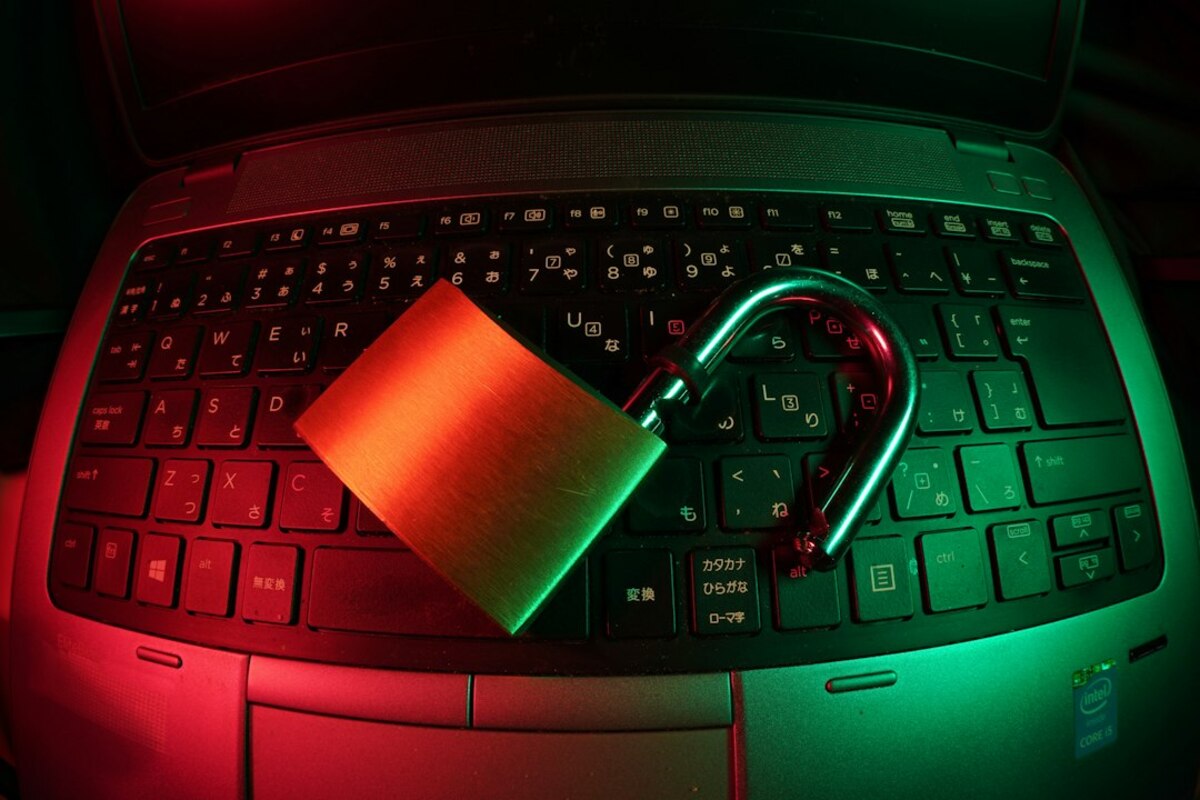
- 2FA blocks many attacks even if your password leaks, because a second proof is required.
- Authenticator apps and security keys are usually safer than SMS codes for everyday use.
- You can avoid lockouts by saving backup codes and setting up at least two recovery methods.
Think of 2FA like a second lock on your front door
Most online accounts still rely on a single thing to prove who you are: a password. That’s like locking your front door with one key—and then copying that key onto sticky notes, old emails, and reused logins across the internet. Even careful people end up reusing passwords sometimes, and even strong passwords can be stolen in data breaches.
Two-factor authentication (2FA) is a simple tool that adds a second requirement before anyone can get into your account. In plain terms, it asks for two different kinds of proof:
- Something you know (your password or PIN)
- Something you have (your phone, a security key, an authenticator app)
- Something you are (fingerprint/face unlock, in some cases)
Here’s a real-life scenario: you use the same password on a shopping site and an old forum. The forum gets hacked, and attackers try that email/password combo on your email account. Without 2FA, they’re in. With 2FA, they hit a second step and stall—because they don’t have your phone or your security key.
This is why 2FA is often described as “one of the highest-impact security upgrades” you can make. It doesn’t require expertise. It just changes the rules: a stolen password alone isn’t enough.

The common types of 2FA (and which one to pick)
Not all 2FA methods are equal. Some are very convenient but easier to intercept. Others are slightly more setup work but much harder to defeat. The good news: you can choose based on your comfort level and what your accounts support.
| 2FA method | How it works | Best for | Watch-outs |
|---|---|---|---|
| Authenticator app (TOTP) | App generates a 6-digit code that changes every ~30 seconds | Most people; strong security with low hassle | Phone loss can lock you out if you don’t set backups |
| Push prompts | You tap “Approve” on a login notification | Convenience; workplaces and major services | “Prompt fatigue” (accidentally approving); social engineering |
| SMS text message | Code sent to your phone number | Better than nothing; accounts that don’t offer other options | SIM-swap scams; text interception; phone number recycling |
| Email code | Code sent to your email address | Low friction (but only if your email is secured) | If your email is compromised, this can collapse |
| Security key (FIDO2/WebAuthn) | A physical key you tap/insert to approve login | Best security; phishing resistance; frequent logins | Costs money; you should keep a spare |
If you want a simple “default” recommendation: use an authenticator app whenever possible. It’s widely supported and generally safer than SMS. If you want the strongest protection with the least worry about phishing, consider a security key for your most important accounts (email, banking, password vault, cloud storage).
Why is SMS weaker? A common trick is a SIM swap, where someone convinces your phone carrier to move your number to their SIM card. Suddenly, they receive your SMS codes. It’s not the most common threat for everyone, but it’s common enough that many security teams recommend moving away from SMS when you can.
Push prompts are convenient, but there’s a human-factor risk: if someone keeps triggering login attempts, you might absent-mindedly tap “Approve” just to make the buzzing stop. Some services reduce this risk with “number matching” (you must pick the number shown on the login screen), which is a good feature to turn on if available.
How to set up 2FA without getting locked out (the part people skip)
The biggest reason people avoid 2FA isn’t complexity—it’s fear of losing access. That fear is reasonable: if your phone is lost, stolen, or reset, your second factor can disappear. The fix is simple: set up 2FA in a way that includes a safety net.
Use this checklist when enabling 2FA on any important account:
- Add at least two second-factor options if the service allows it. For example, an authenticator app and a security key, or an authenticator app and backup codes.
- Save backup codes immediately. Many services provide a one-time set of “break glass” codes. Treat them like spare keys.
- Keep backup codes somewhere safer than your notes app. Printing them and storing them with important documents works. Saving them in a secure vault works too. The key idea is: if your phone is gone, you can still reach the codes.
- Verify your recovery email/phone number. Recovery routes are part of your security. If they’re outdated, you can lose your account even if you did everything else right.
- Do a test login. Sign out and sign back in once, just to confirm your setup works before you “need” it.
Picture a common mishap: you upgrade to a new phone, wipe the old one, and only then realize your authenticator app didn’t transfer. If you saved backup codes, it’s a five-minute annoyance. If you didn’t, it can become a multi-day support ticket—if recovery is possible at all.
Another everyday scenario: you’re traveling, your phone battery dies, and you need to log in to a work account from a hotel computer. If you have a security key on your keychain or a printed backup code in your bag, you’re fine. Without a fallback, you’re stuck until you can charge your phone.
2FA is a specific type of MFA. MFA means “two or more factors.” 2FA means exactly two. In everyday use, people often say “2FA” when they mean “turn on an extra login step.”
2FA is a specific type of MFA. MFA means “two or more factors.” 2FA means exactly two. In everyday use, people often say “2FA” when they mean “turn on an extra login step.”
2FA helps a lot, but it’s not a license for weak passwords. A strong, unique password plus 2FA is the combo that holds up best. A weak password still increases the chance of repeated login attempts, lockouts, or successful attacks if your second factor is bypassed.
2FA helps a lot, but it’s not a license for weak passwords. A strong, unique password plus 2FA is the combo that holds up best. A weak password still increases the chance of repeated login attempts, lockouts, or successful attacks if your second factor is bypassed.
Skipping backup codes and recovery steps. People enable 2FA, feel “done,” and move on. Then a phone change or loss turns into an account recovery headache. The second biggest mistake is approving a push prompt they didn’t initiate.
Skipping backup codes and recovery steps. People enable 2FA, feel “done,” and move on. Then a phone change or loss turns into an account recovery headache. The second biggest mistake is approving a push prompt they didn’t initiate.
One more practical tip that feels almost too simple: protect the device that holds your 2FA. Use a screen lock (PIN, fingerprint, or face unlock). If your phone is your “second key,” don’t leave it lying around unlocked like a spare house key taped under the doormat.
Finally, choose where to start. If turning on 2FA for everything feels like a chore, begin with the accounts that can unlock the rest:
- Email (password resets flow through it)
- Primary cloud account (photos, files, device backups)
- Banking/payment apps
- Work accounts (especially if they contain client data)
- Social accounts (often used for impersonation scams)
Once those are protected, enabling 2FA elsewhere becomes less urgent—and less intimidating—because you’ve already learned the steps, saved your backup codes, and proven to yourself that it’s manageable.